
How to share a player with another user
Give a teammate or partner the ability to manage a specific player without giving them full account access.
What sharing does
When you share a player with another user, they will be able to:
- View the player and monitor its online status
- Manage playlists on that player (add/remove the playlists they added)
- Change the player’s settings
They will not be able to:
- Delete the player
- Share the player further (only the player creator can share)
- Remove playlists that they don’t have access to
How to share a player
- Open Players.
-
Find the player you want to share and click the Share button next to it.
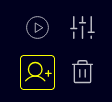
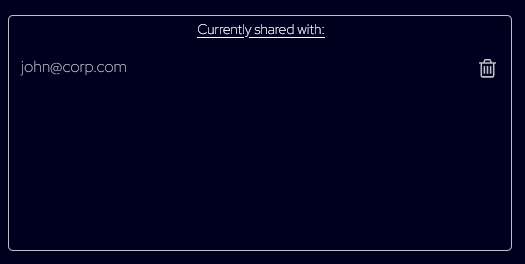
- In the Share dialog, enter the user’s email address.
-
Click Share.

- The user appears in the Shared with list. From now on, that user can see and manage this player.
Playlist visibility & behavior
- If the player already has playlists that aren’t shared with the new user:
- Those playlists continue to play on the device.
-
The shared user can’t see them in the UI and can’t remove them.
If the shared user adds playlists to the player:
- Their playlists are added on top of your playlists in the player’s playlist stack/order.
Tip: If you want the shared user to also see specific playlists that already exist on the player, share those playlists with them too
How to remove a user’s access
- Open the Share dialog for the player.
- Click the Trash icon next to the user you want to remove.
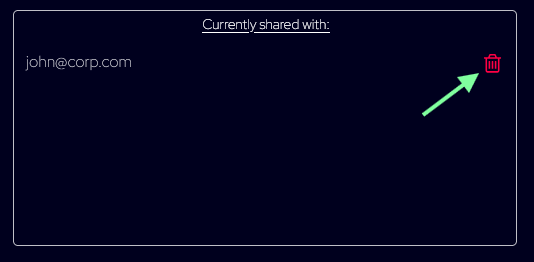
- The user is removed from the Shared with list and immediately loses access to this player.
Limitations & notes
- No re‑sharing: A user who received access cannot share the player with others.
- No deletion rights: Shared users cannot delete the player.
- Per‑player access: Sharing applies only to the selected player.
FAQs
Q: The user says they can’t see some playlists on the player. Why?
A: They can only see playlists that are shared with them. Playlists not shared with them still play on the device but remain hidden in their UI and can’t be removed by them.
Q: Can the shared user change device settings?
A: Yes, shared users can change player settings.
Q: Can the shared user delete the player?
A: No. Only the player creator (owner) can delete a player.
Q: Can the shared user share it with someone else?
A: No. Only the player creator can manage sharing.
Troubleshooting
- I don’t see the Share button: You’re likely not the creator of this player. Ask the creator to share it.
- Invite not working / user not added: The user must have an account prior to sharing, double‑check the email address you enter has an account and try again.
- User can’t remove an existing playlist: That playlist likely isn’t shared with them. They can only remove playlists they added (or playlists they have access to).